Product guide
Inside the Overwatch interface
A closer look at shatter's aim controls, player ESP and hero profiles, with a practical way to explore the interactive menu.
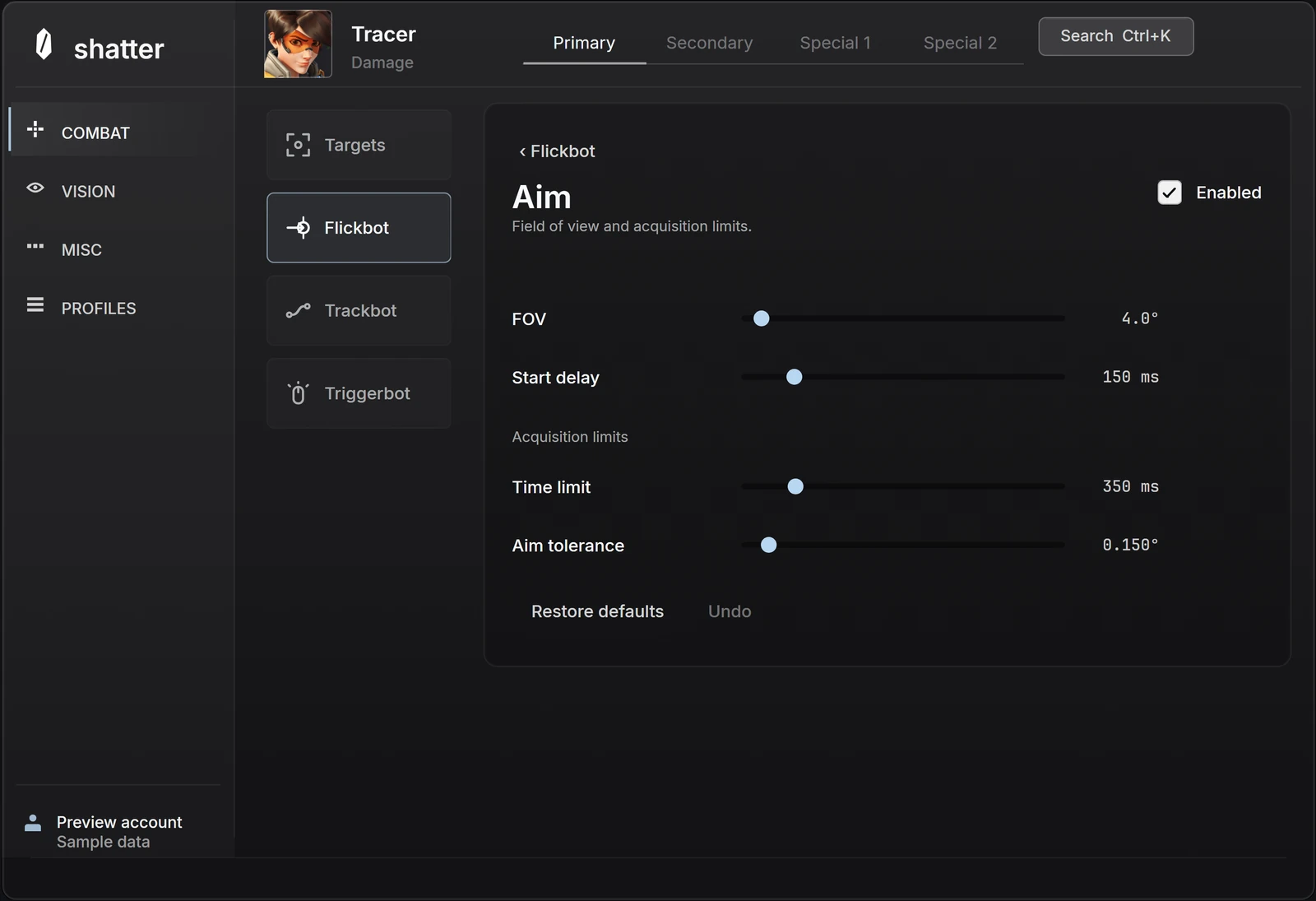
An aimbot is only part of a setup. How it responds, which targets it prioritizes and what information you see all change how that setup feels. The shatter interface brings those choices together, with separate areas for aim, player visuals and saved configurations.
You can explore that interface on the Overwatch product page before choosing access. This guide explains what to look for. The preview shows the current interface with sample settings; the final released feature list and supported systems will be published before sales open.
Start with aim response
Flick aiming and tracking ask different things of your controls. A flick moves toward a target and settles; a track follows movement over time. shatter separates their response and activation settings. The targeting field of view is shared within the current hero or loadout setup, so inspect that common area before comparing the two responses.
Start with the activation controls, then look at the targeting area and distance. The hitbox-priority editor lets you examine which areas take precedence. Change one setting at a time as you explore: it is easier to understand the available choices when you keep the rest of the setup familiar.
Choose what your ESP shows
Player ESP is the visual side of the interface. Its controls include boxes, skeletons, health and distance labels, alongside audience and range settings. You do not need to display every available element. A smaller selection can make the information you want easier to read.
Open the player preview while adjusting colors, line weight and text size. It gives you a sample player to inspect beside the controls. Compare a label with and without the surrounding details, then decide what deserves space in your layout. The sample is an interface demonstration, not live gameplay footage.
Keep changes organized by hero
A shared starting point keeps routine settings together. Individual hero adjustments let you change the parts that need a different feel. The hero selector groups the roster by role, making it easier to move between configurations without losing your place in the menu.
Named profiles give you a separate way to save and return to a setup. In the browser preview you can try the profile controls using local sample values. Those changes are for exploring the website: they do not edit a game session or the settings in your installed product.
Continue reading
Follow the next part of your setup.
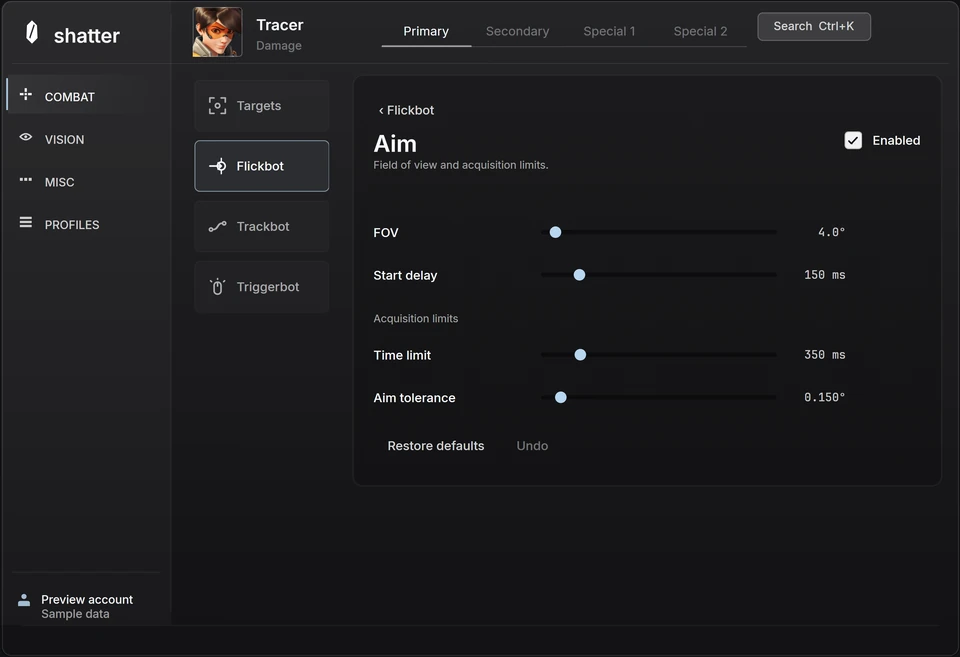 Interface preview
Overwatch aimbot FOV: understand the targeting area
What aim FOV changes, how it differs from camera FOV, and how distance, target priority and hitbox selection fit together.
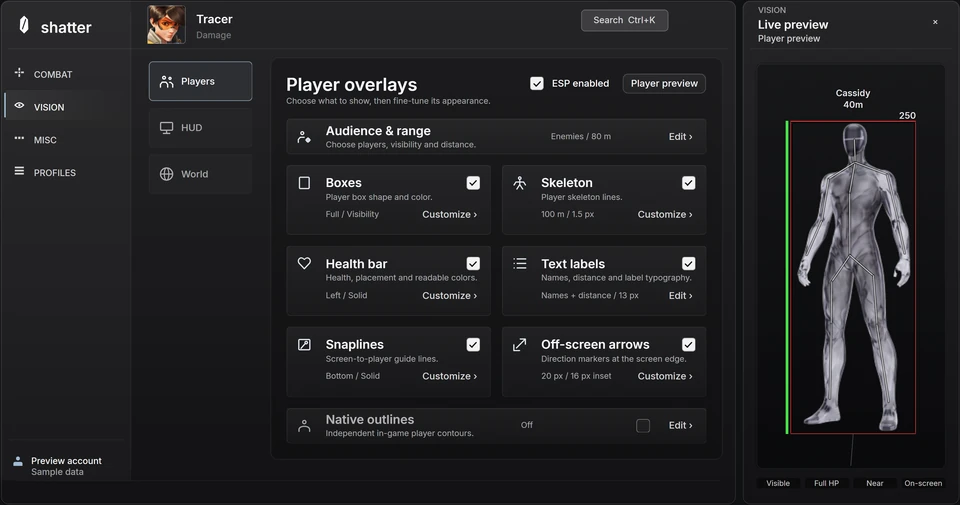 Interface preview
Overwatch ESP settings: build a display you can read
Use information hierarchy, line weight, label size and distance limits to make player visuals clearer without enabling every element.
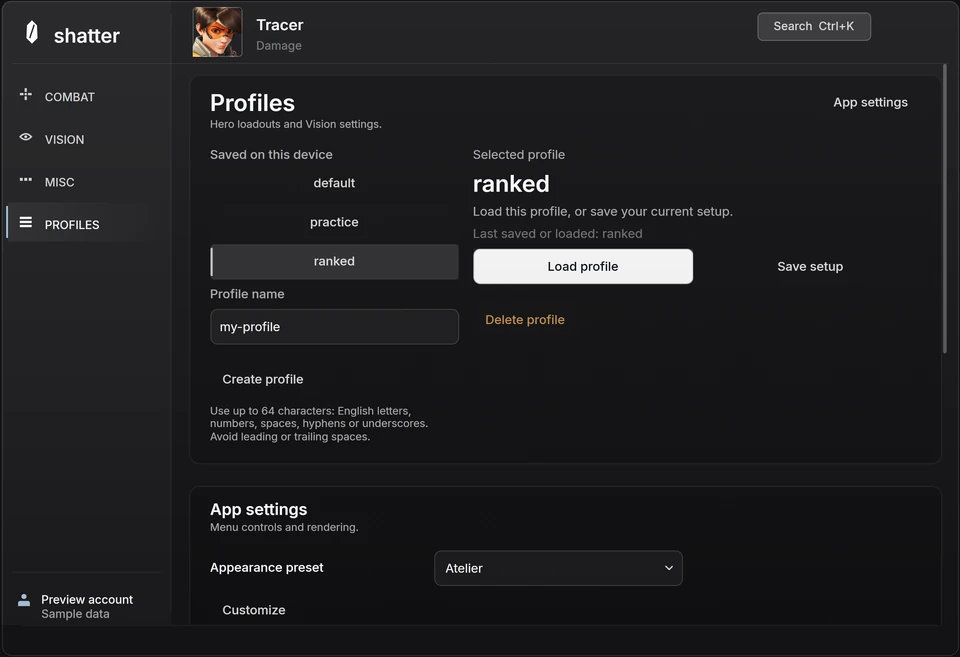 Interface preview
Overwatch hero profiles: save a setup you can return to
Understand hero selection, action-specific controls and named profiles, then make experiments easy to compare and undo.