Aim settings
Overwatch aimbot FOV: understand the targeting area
What aim FOV changes, how it differs from camera FOV, and how distance, target priority and hitbox selection fit together.
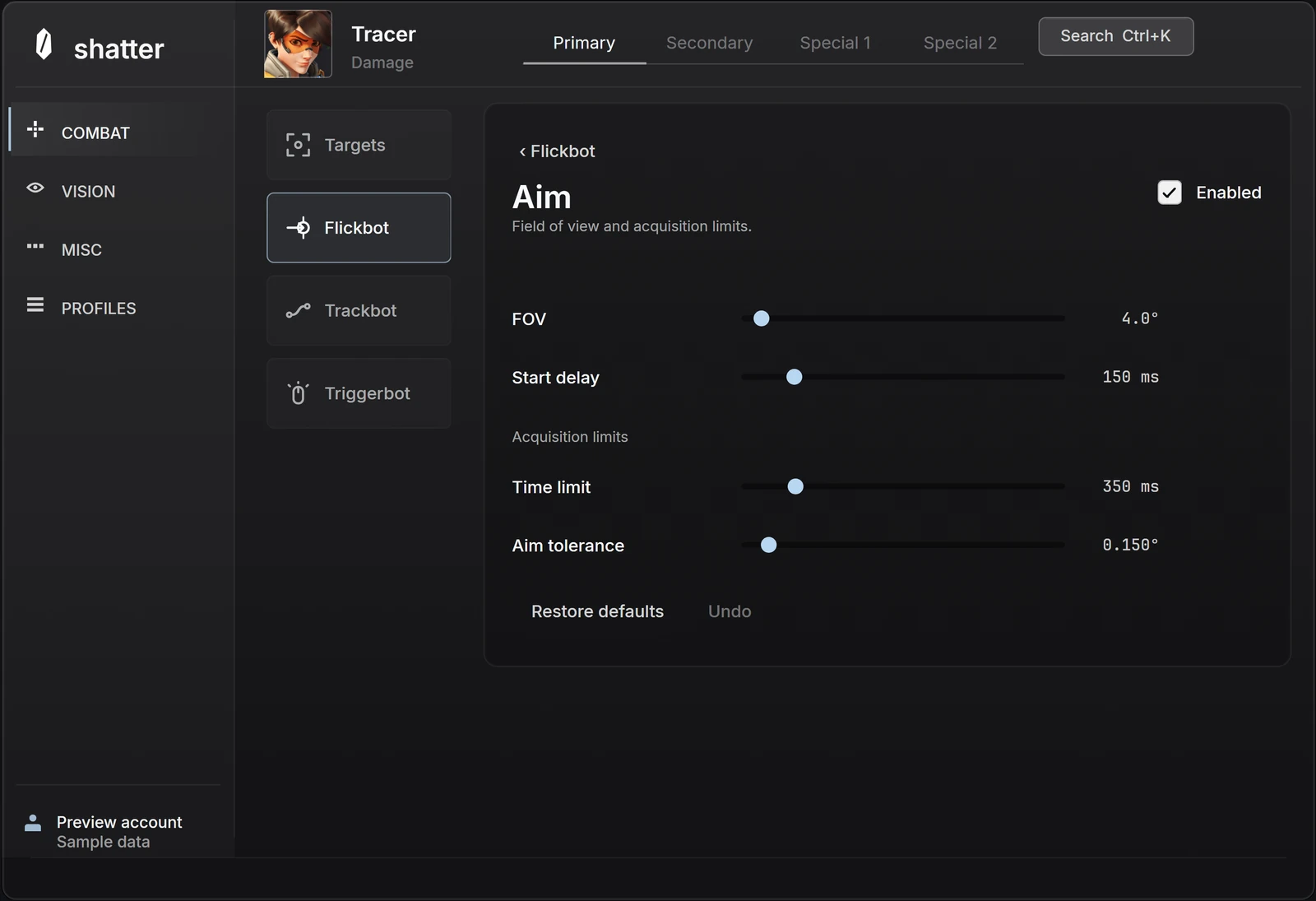
Aimbot FOV sets how far away from the crosshair a target can be considered. A wider setting admits a larger area; a narrower setting confines selection closer to where you are already looking. It does not make your camera see more of the map, increase weapon range or change the size of an enemy.
The useful question is not which FOV number is best. It is which part of target selection you want to change. Area, distance, priority and aim point answer different questions, even when they sit beside each other in the same menu.
Three settings people call FOV
Camera field of view describes the view of the world that the game presents. Aim FOV describes a selection area around the crosshair. A drawn FOV ring is a visual aid. Increasing a ring's opacity makes it easier to see; it does not, by itself, change which targets qualify.
Keep those distinctions clear when comparing screenshots. The same angular selection area can occupy a different number of screen pixels at another camera setting or resolution. Copying the apparent circle size from somebody else's screenshot is not a reliable way to copy their configuration.
Scroll to compare
| Setting | What it describes | What to inspect |
|---|---|---|
| Camera FOV | How much of the game world is in view | The game's camera options |
| Aim FOV | How far from the crosshair selection can reach | The aim setting and its displayed unit |
| FOV ring appearance | How an on-screen ring is drawn | Color, line weight and opacity |
Area, distance and priority work together
Imagine two enemies close to your crosshair. One is farther across the map; the other is physically nearer but slightly off-center. Both may fall inside the same aim FOV. A distance limit can exclude the farther player, while target priority decides which eligible player is preferred. Enlarging FOV does not answer either of those questions.
In shatter's interface, Maximum distance is expressed in meters. Target priority offers Smallest angle, Closest distance and Lowest health %. Smallest angle means closeness to the crosshair direction, not closeness to your position in the world. Read the label before assuming that two settings using the word closest do the same thing.
Choosing a player is different from choosing an aim point
Hitbox priority concerns the regions you want considered on an eligible player. It is a separate decision from the area around your crosshair. Selecting a preferred region does not enlarge that region, and a wide FOV does not make a small region bigger.
Open Hitbox priority to inspect the selected regions and their order. A clear configuration is one you can explain: which players are eligible, which one takes precedence, and which regions you have chosen. If those answers are unclear, changing another number usually makes the setup harder to understand.
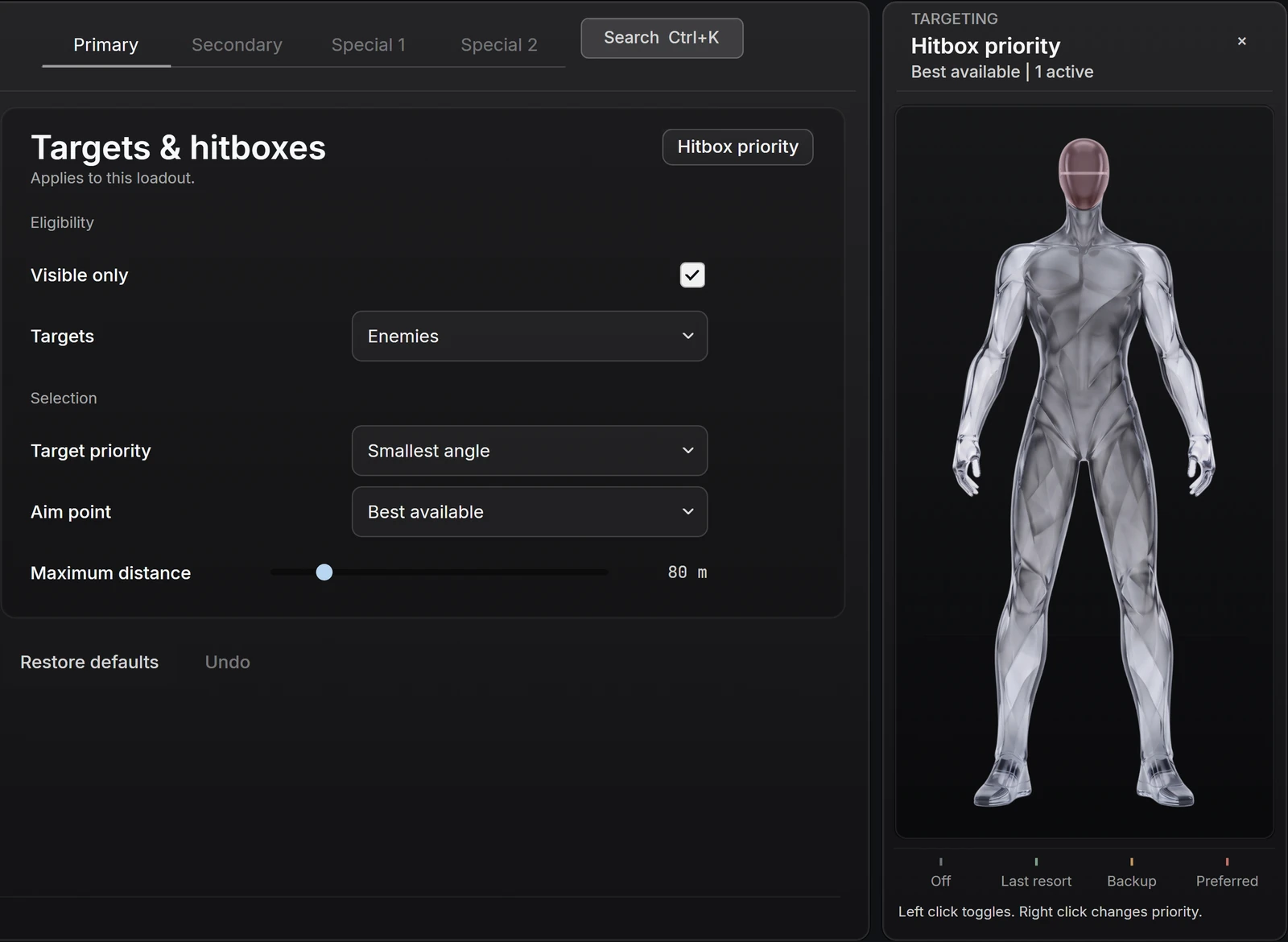
Use the preview to learn the control relationships
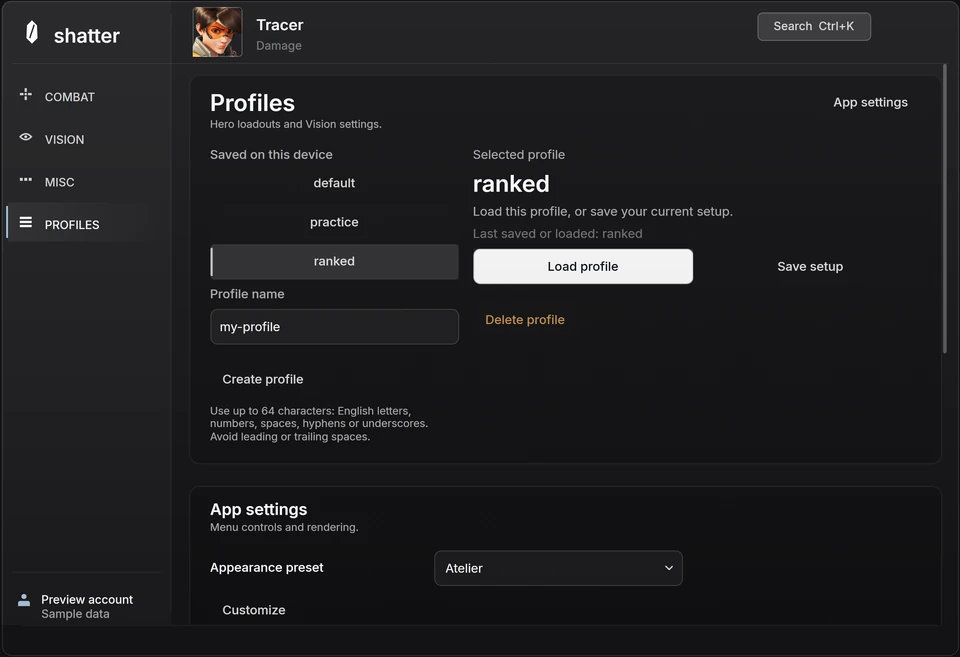
The interactive menu is useful for finding these settings and seeing how they are organized. It cannot show whether a moving player would be selected in a real match, because it has no game session. That distinction matters most with motion, range and visibility: a static figure can explain an option without demonstrating its gameplay result.
Once you understand the selection area, move on to motion. If the eligible target is correct but the response feels different from what you expected, FOV may not be the setting you need to revisit. Response, maximum speed and activation timing deserve their own comparison.
Common questions
Does a larger aim FOV mean more accurate aim?
No. It changes the area in which targets can be considered. Accuracy also depends on the selected target, aim point, weapon behavior and motion; a larger area is not a performance guarantee.
Are Flickbot and Trackbot FOV separate in shatter?
The current Combat setup shares the aim FOV within the selected hero and action context. Their motion and activation settings remain separate.
Sources & further reading
Continue reading
Follow the next part of your setup.
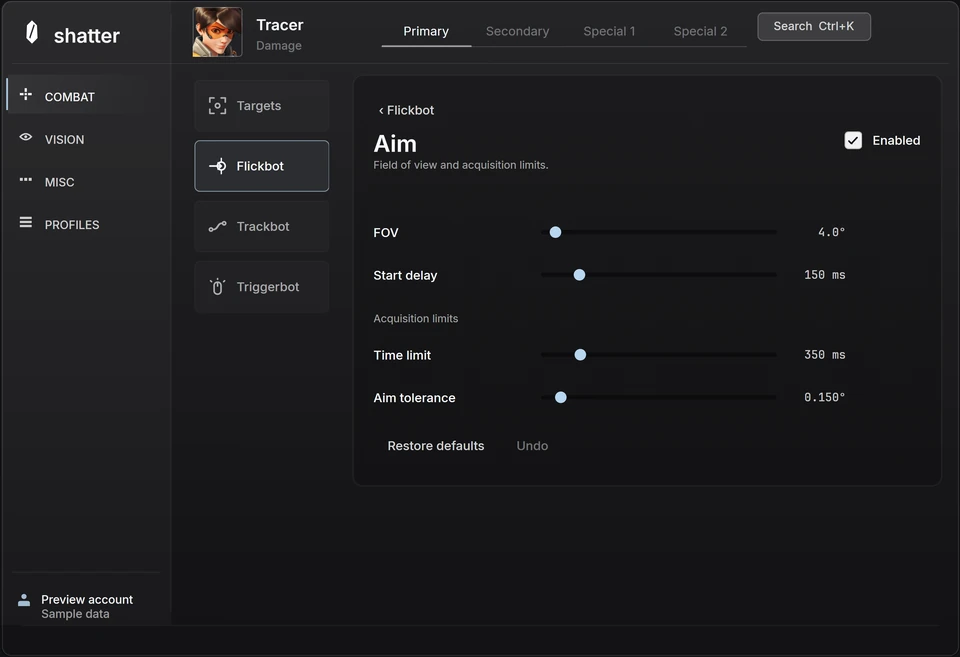 Interface preview
Overwatch aim smoothing: response, speed and timing
Separate smoothing from maximum speed, acceleration and reaction delay so each adjustment has a clear purpose.
 Concept illustration
Flickbot vs tracking in Overwatch: what changes?
Compare a single aim movement with sustained following, then separate movement style, activation and firing behavior.
 Interface preview
Overwatch hero profiles: save a setup you can return to
Understand hero selection, action-specific controls and named profiles, then make experiments easy to compare and undo.