Configuration guide
Overwatch hero profiles: save a setup you can return to
Understand hero selection, action-specific controls and named profiles, then make experiments easy to compare and undo.
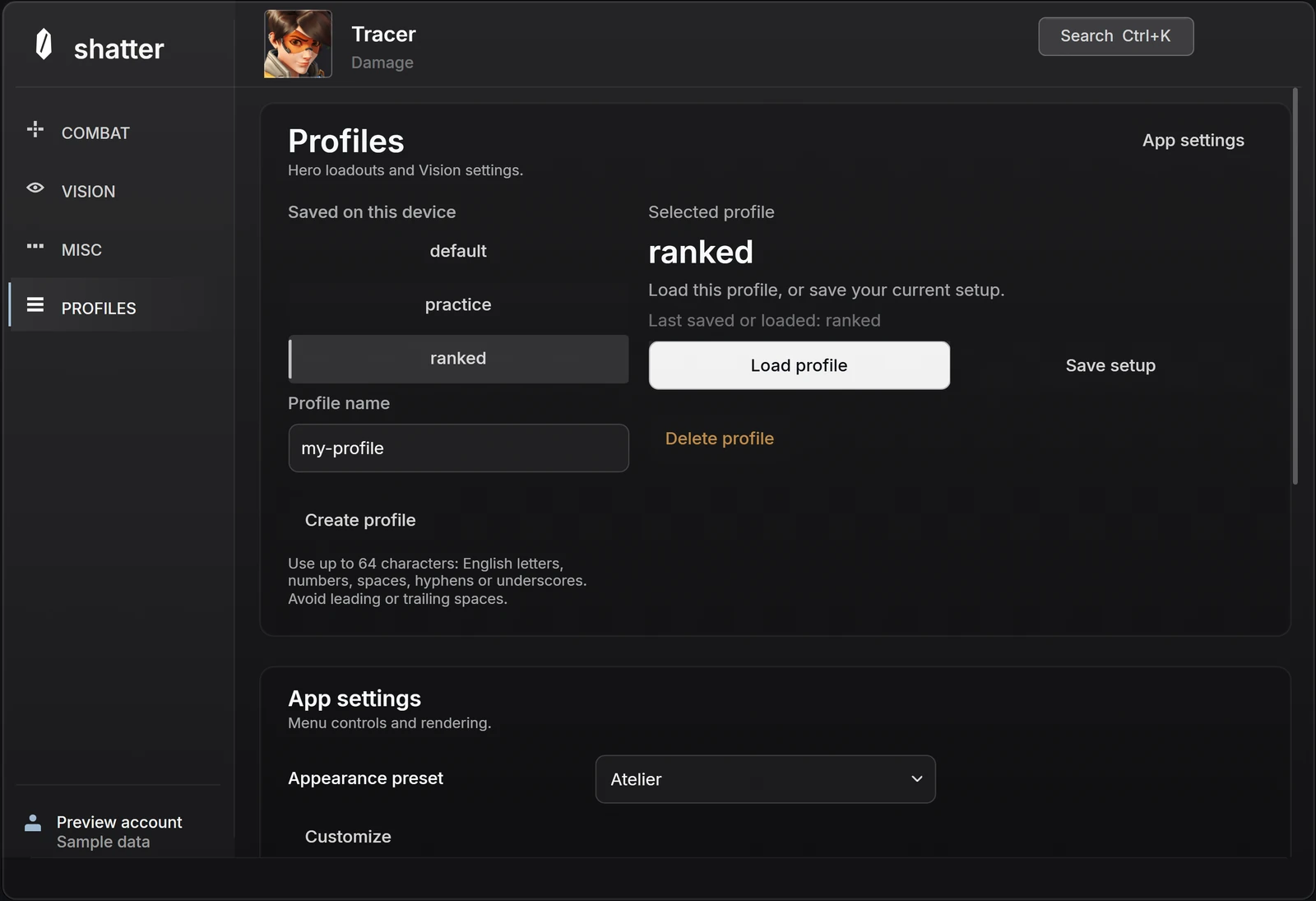
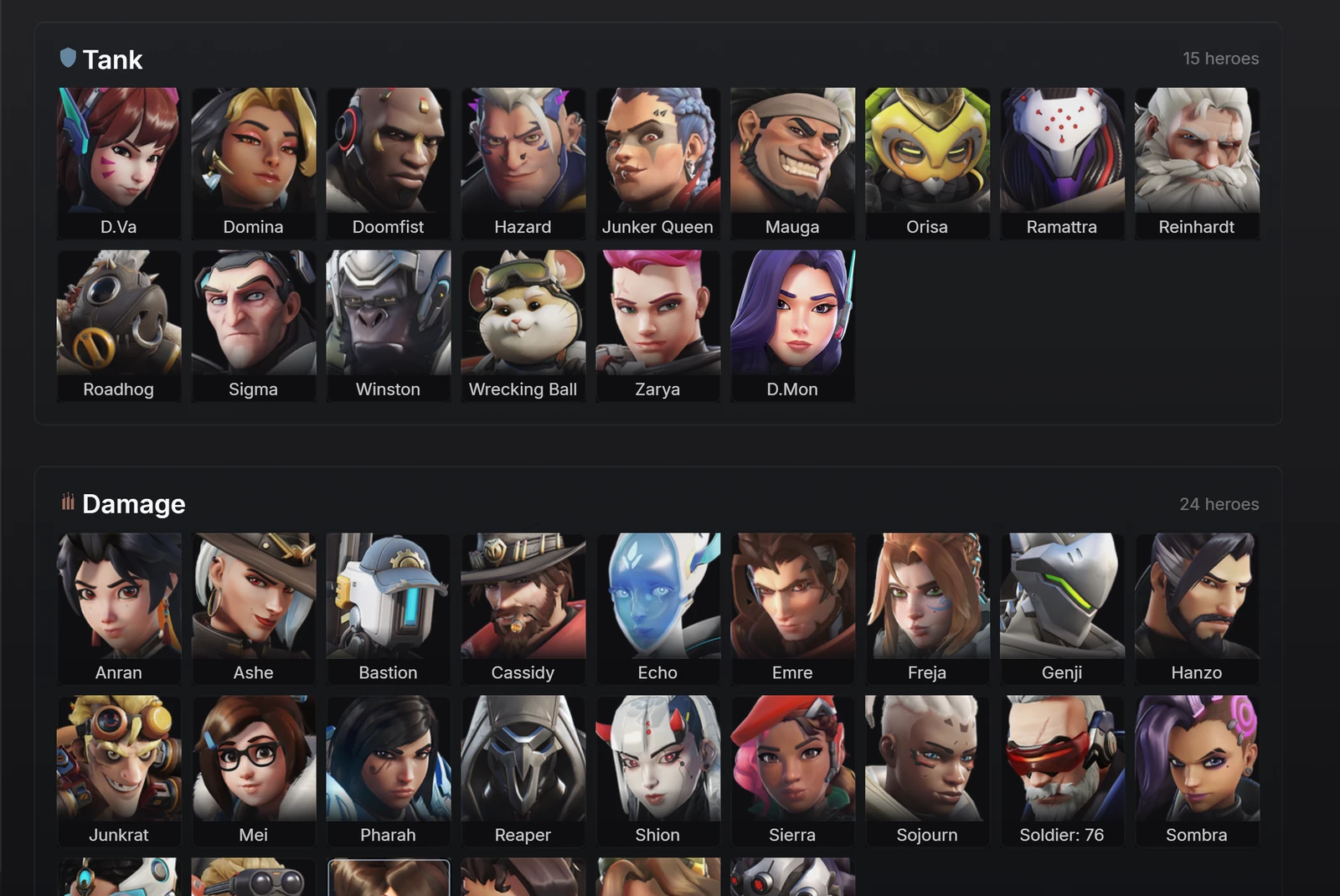
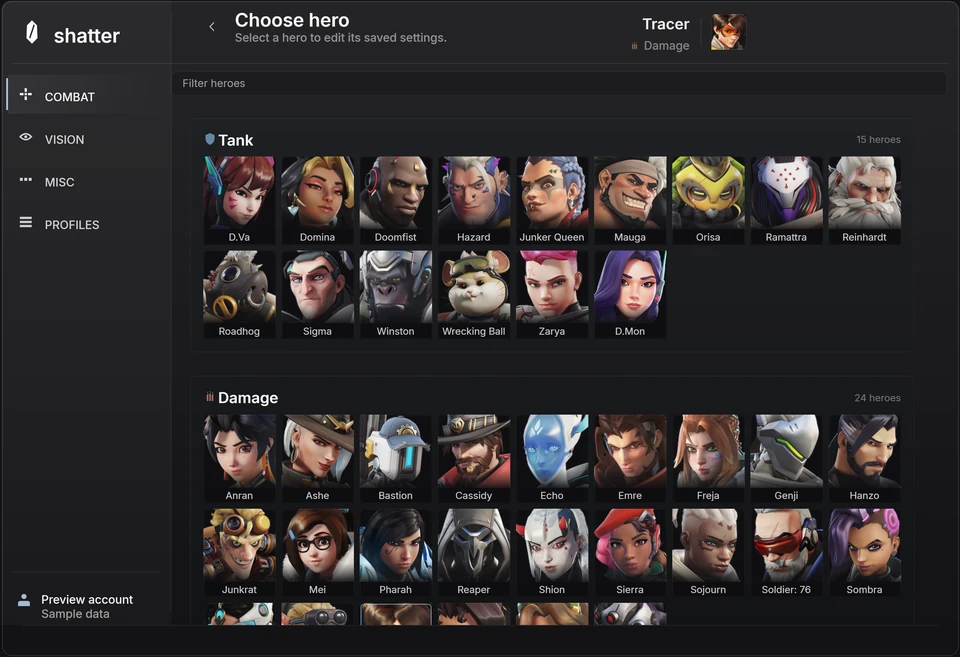
A hero selector chooses the context you are editing. A named profile stores a configuration you can save and load. Keeping those two ideas separate prevents a common mistake: changing the selected hero and assuming that you also changed, saved or loaded a complete profile.
Good profile organization makes experimentation reversible. You should be able to identify your baseline, explain what changed in another version and return to the original without reconstructing it from memory. That matters more than having a long list of vaguely named presets.
Know which context a setting belongs to
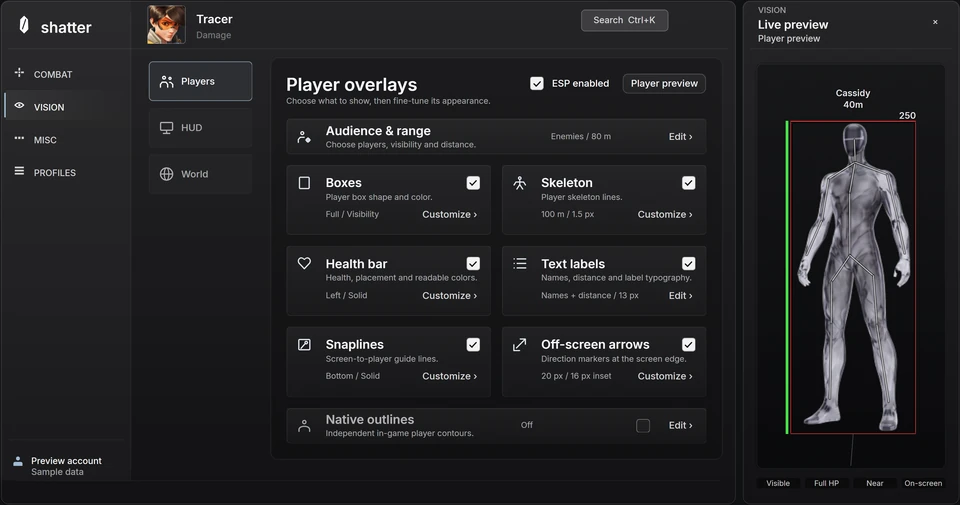
Some preferences are shared across the interface. Other controls belong to a hero, and some belong to a particular action within that hero. In the current sample menu, player-visual preferences are shared, while Combat includes hero and action-specific values. Changing the hero therefore should not be expected to reset every setting you can see.
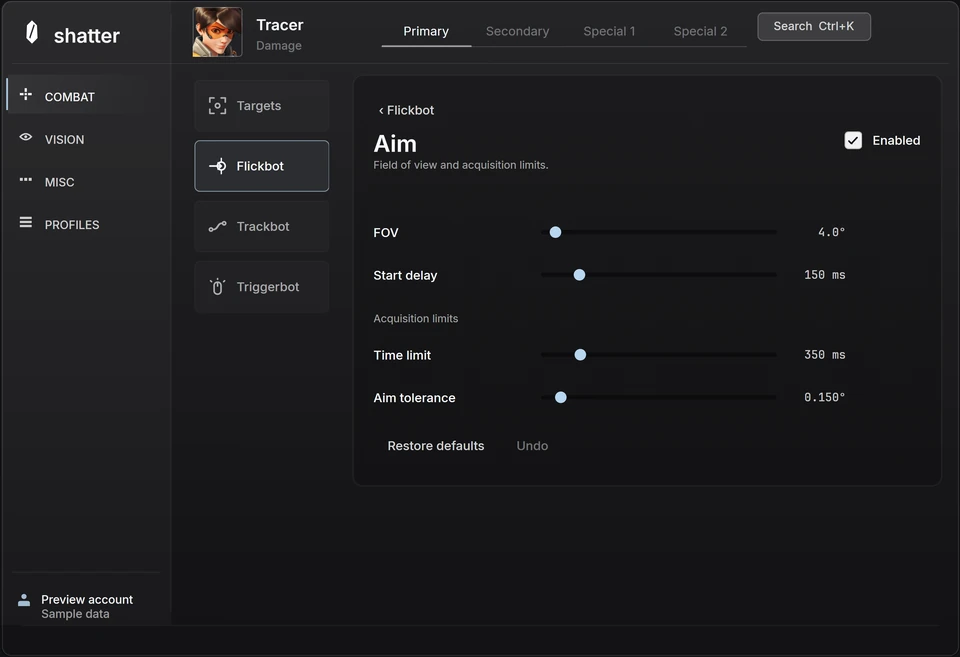
Look at the hero name and action selection together before editing. Primary and Secondary are different contexts, not merely alternate names for one configuration. The available actions and their released behavior still need to match the product's supported feature list.
Scroll to compare
| Selection | What it identifies | Useful question |
|---|---|---|
| Hero | Whose configuration you are inspecting | Am I editing the intended character? |
| Action | The selected weapon or ability context | Is this the primary or another action? |
| Named profile | A saved set of configuration values | Have I loaded it, or only selected its row? |
Name the reason for a profile
Names such as baseline, smaller targeting area or clearer player labels make a comparison understandable. Best, new and final become confusing as soon as another version exists. A short name should tell you why the profile differs, while a separate note can keep the exact settings and date.
Keep the scope in your notes too. A smaller-targeting-area experiment may change only the selected hero's action, while a shared visual preference can affect the display across heroes. The profile name identifies the experiment; the note identifies which part of the configuration actually differs.
Selecting, saving and loading are separate actions
In the browser sample, selecting a profile chooses the record you want to work with. Load applies its saved settings. Save updates that selected record with your current sample settings. Creating a profile captures a named starting point. These are different operations, so check the selected name before saving over a baseline.
A simple habit prevents confusion: save the baseline, create a separately named experiment, make one change, and compare by loading each. If you overwrite both records with the same values, their different names will not preserve the difference you intended to test.
- Start with a named baseline and confirm it is saved.
- Create a second profile describing one planned change.
- Confirm the selected hero and action before editing.
- Save the experiment, then load the baseline to compare.
- Delete a profile only after checking which record is selected.
A reset is different from loading your baseline
Restore defaults returns the relevant controls to their supplied values. Loading a profile returns them to values you saved. Those starting points can be different. If your baseline contains deliberate changes, restoring defaults is not a substitute for keeping that profile.
The same distinction helps when a change appears to affect more than one page. Flickbot and Trackbot share the current Combat FOV within the selected hero and action context. Seeing that value on both pages is not evidence that two unrelated profiles were overwritten. Read the control's scope before diagnosing a save problem.
Keep browser samples separate from installed settings
The website's sample profiles exist to let you try the workflow. They remain in the current browser session as you navigate, but refreshing the page starts the sample again. They do not transfer into the installed product or modify a game session. Take a note of an idea you want to revisit rather than treating the preview as a cloud backup.
When using a released product, follow its current profile instructions and keep notes with the relevant version. An Overwatch update or a product update can change the context around a saved setup. A dated baseline and a clear purpose make those later comparisons much easier.
Common questions
Does choosing a profile automatically load it?
In the browser sample, selecting a profile and loading it are separate actions. Check the selected record, then use Load to apply its saved sample values.
Will a browser profile appear in my installed product?
No. Browser profiles are temporary sample configurations. They do not sync to the installed product and a page refresh restarts the sample.
Sources & further reading
Continue reading
Follow the next part of your setup.
 Interface preview
Overwatch aimbot FOV: understand the targeting area
What aim FOV changes, how it differs from camera FOV, and how distance, target priority and hitbox selection fit together.
 Interface preview
Overwatch ESP settings: build a display you can read
Use information hierarchy, line weight, label size and distance limits to make player visuals clearer without enabling every element.
 Interface preview
Hitscan vs projectile in Overwatch aim settings
Why travel time, charging and alternate attacks matter when reading a hero configuration, without relying on a universal preset.