Visual settings
Overwatch ESP settings: build a display you can read
Use information hierarchy, line weight, label size and distance limits to make player visuals clearer without enabling every element.
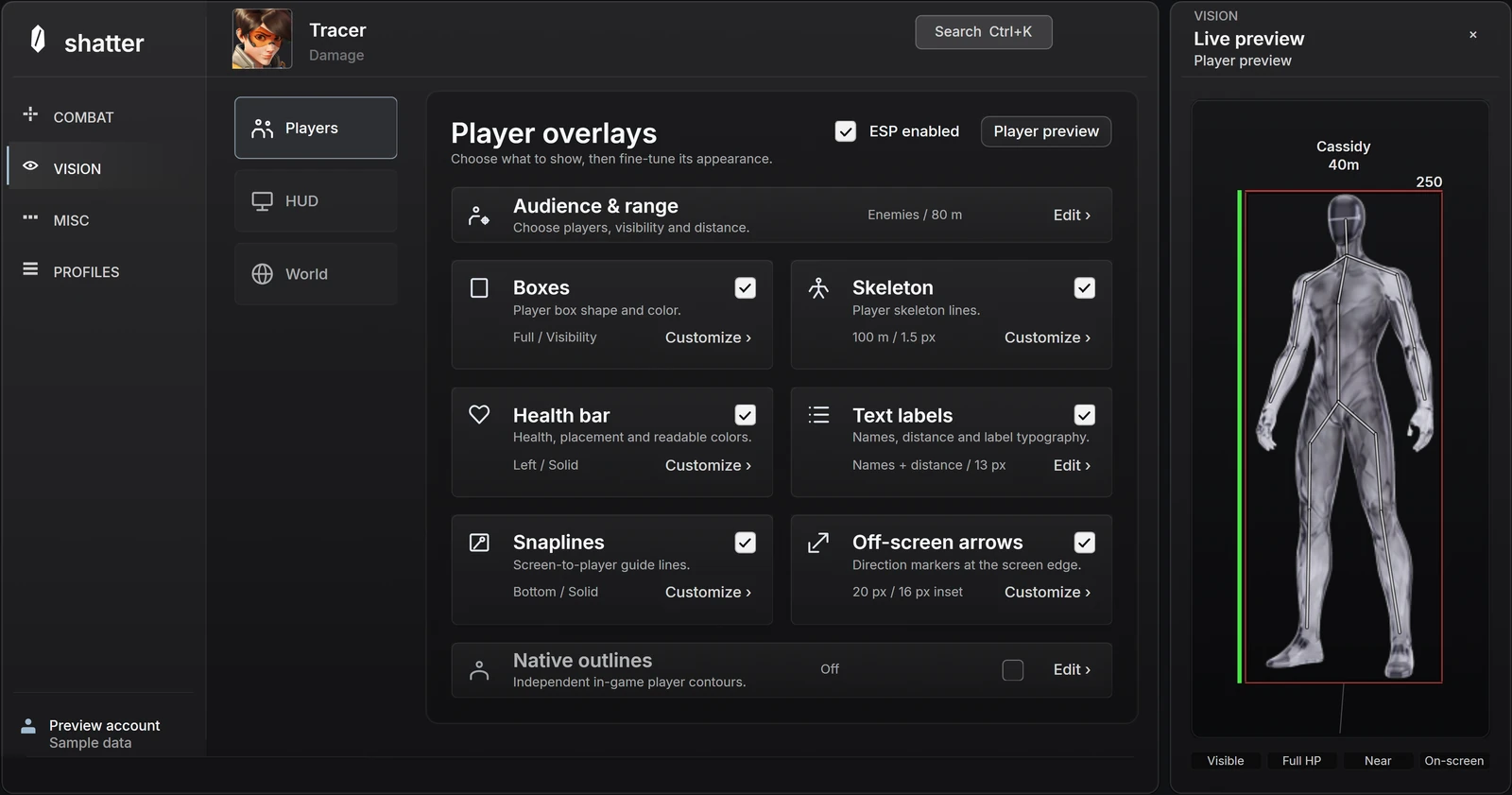
A readable ESP layout gives important information more visual weight than secondary detail. It does not need every box, line and label enabled. Start with the question you want the display to answer, then add the smallest set of elements that answers it clearly.
In shatter's player preview, you can compare these choices beside a sample figure. It is a useful place to work on composition: health placement, text size, skeleton weight and box fill. Treat it as an appearance check, then confirm the released product's behavior and supported settings separately.
Give each element a job
Choose one primary marker for locating a player, then one or two supporting details. A box can establish the overall frame, a health bar can communicate remaining health, and a distance label can supply context. If all three are equally bright and heavy, none stands out as the first thing to read.
Skeleton lines add a different layer of detail. Decide whether that detail helps the current layout before combining it with a heavy box, filled interior and several labels. Removing a redundant element can make the remaining information more useful without changing any of its values.
Line weight and fill change the balance
Thin lines can disappear against a bright background; thick lines can dominate a small or distant figure. Fill opacity affects how much of the figure is covered inside a box. These are separate choices. A clear border does not require an opaque interior, and a stronger fill does not make small text easier to read.
The current menu provides a skeleton underlay: a darker stroke beneath the skeleton lines intended to improve separation against a bright background. That is different from simply making the colored line thicker. Compare the two approaches visually and keep the less intrusive option that remains readable.
Scroll to compare
| What you notice | First control to inspect | Keep in mind |
|---|---|---|
| The figure is obscured | Box fill opacity | Border and interior fill are separate |
| Skeleton lines disappear | Underlay and line weight | A dark edge can help without a heavy colored stroke |
| Labels dominate the figure | Text size and enabled labels | Removing a label may help more than shrinking everything |
| Distant detail is crowded | Player and skeleton range | Different elements can have different range limits |
Use color consistently
If color communicates team, avoid giving it a conflicting meaning elsewhere in the same element. If a health bar changes between full and low health colors, keep that progression easy to recognize. The goal is a consistent reading pattern, rather than a separate bright accent for every available component.
Do not rely on color alone for an important value. Position, length and optional text can support a health indicator. Compare the layout at a glance: can you distinguish a player marker from a health value without studying which shade you selected? If not, simplify the palette or separate their placement.
Treat text size and range as part of the layout
Names, hero information and distance labels consume space differently. A short distance can sit neatly under a figure while a longer player name needs more room. Inspect the labels together, not only one at a time, and check that their position does not compete with the health bar.
shatter distinguishes menu reading preferences from overlay controls. Increasing the menu's Body text size makes its labels easier to read; it does not resize every game overlay. Use the Vision text settings for player labels. The same separation applies to the skeleton-only range control and the broader player range.
Compare two deliberate layouts
Create a minimal version containing only your primary marker and essential information. Save it, then make a second version with the additional detail you are considering. Switch back to the first before deciding. It is easy to keep adding elements when you never look at the simpler version again.
Check the composition at a normal reading size instead of judging it only in a close crop. The browser's sample figure helps reveal overlap and hierarchy, but it does not recreate every map background or moving fight. Keep those limits in mind when turning an attractive preview into expectations of actual gameplay.
- Pick a primary marker and a small set of supporting labels.
- Adjust border, fill, skeleton and text independently.
- Check that health colors have a consistent meaning.
- Save a minimal baseline before adding more information.
Common questions
Does changing menu text size resize ESP labels?
No. The menu's reading preferences and the Vision overlay controls are separate. Use the text-label settings for player information.
Why can a skeleton disappear before other player elements?
The interface has a skeleton-only range limit as well as a broader player range. Inspect both rather than assuming every element uses the same distance.
Sources & further reading
Continue reading
Follow the next part of your setup.
 Concept illustration
Overwatch ESP vs wallhack: read the feature list clearly
Understand what boxes, skeletons, labels and visibility options describe, and why ESP and wallhack are not complete feature specifications.
 Interface preview
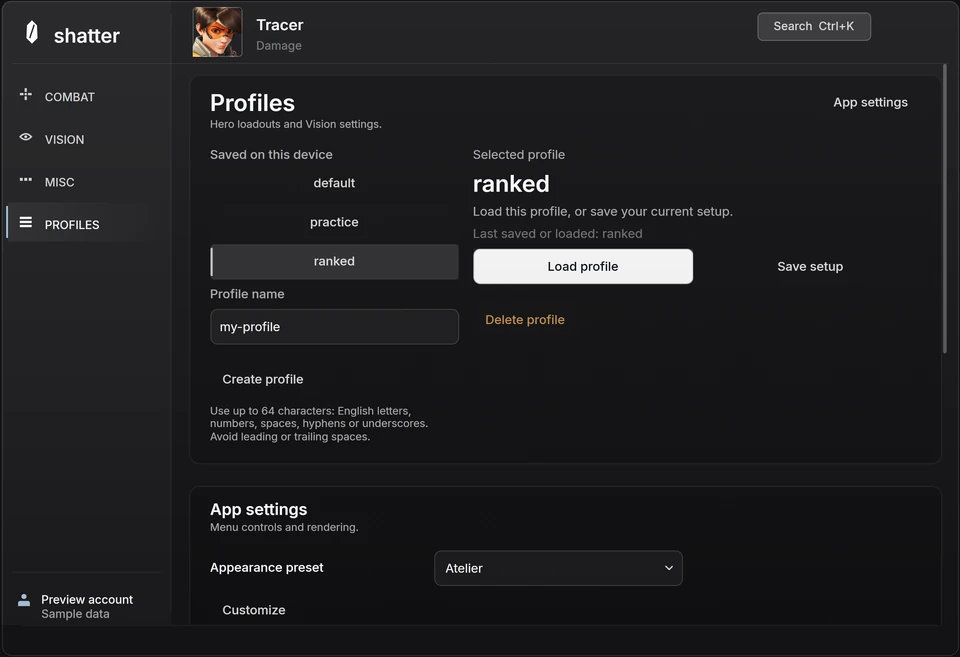
Overwatch hero profiles: save a setup you can return to
Understand hero selection, action-specific controls and named profiles, then make experiments easy to compare and undo.
 Interface preview
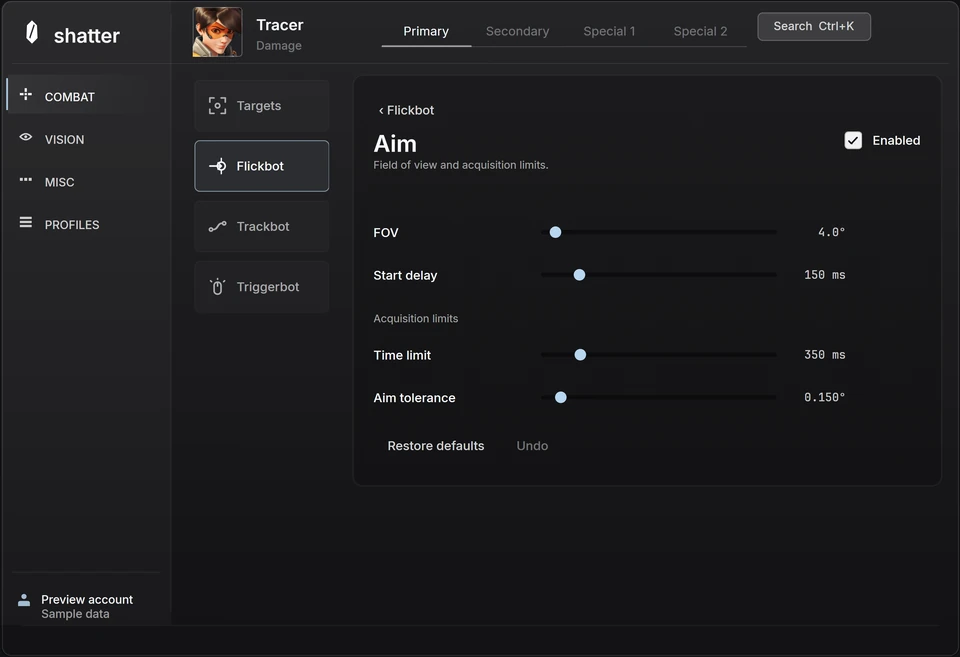
Inside the Overwatch interface
A closer look at shatter's aim controls, player ESP and hero profiles, with a practical way to explore the interactive menu.