Aim settings
Overwatch aim smoothing: response, speed and timing
Separate smoothing from maximum speed, acceleration and reaction delay so each adjustment has a clear purpose.
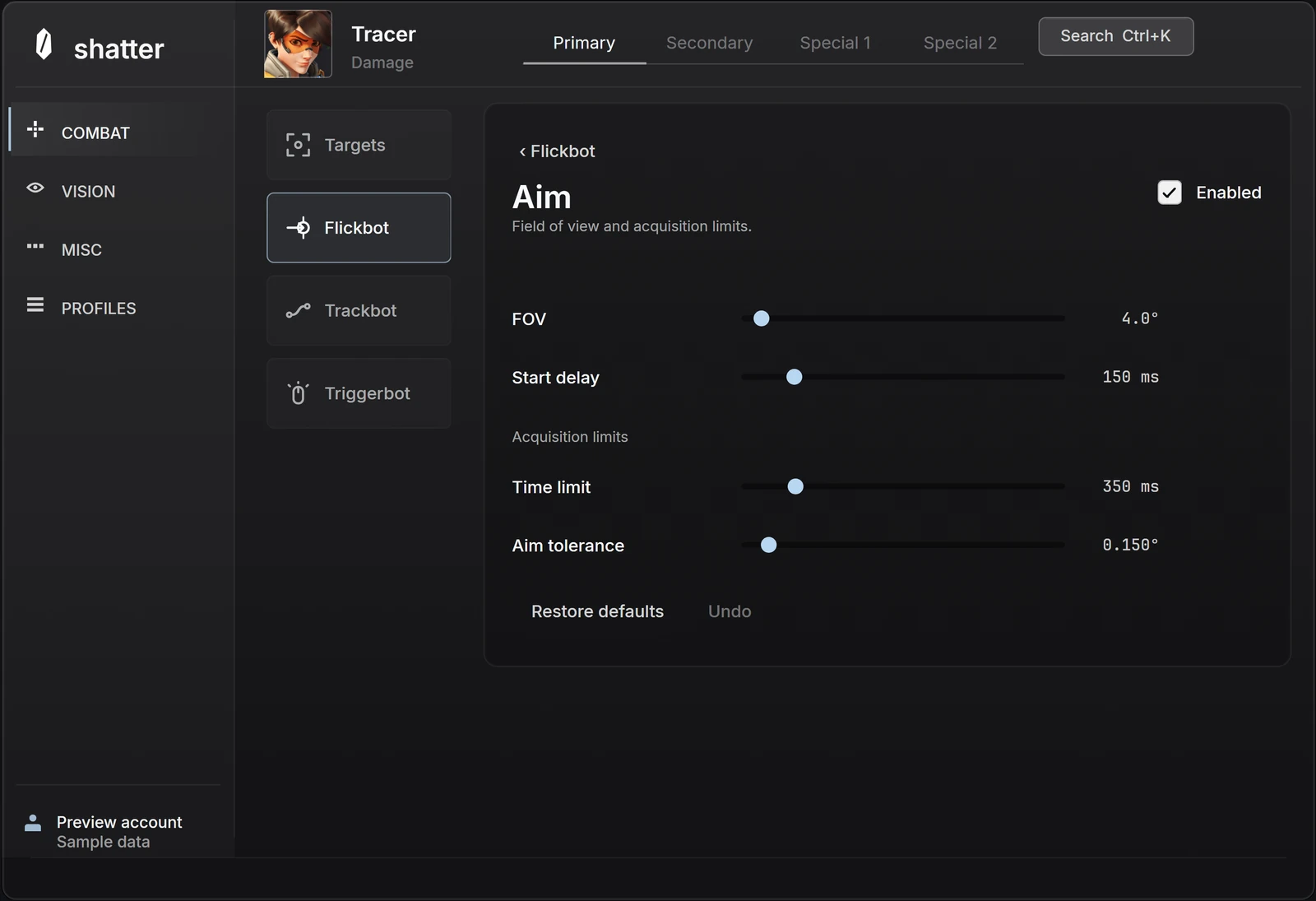
Aim smoothing describes how movement develops over time. It is often used loosely to mean anything that makes aim feel less abrupt, but response time, speed limits, acceleration and activation delay are separate controls. Treating them as one strength slider makes a configuration difficult to compare or explain.
In an Overwatch aimbot menu, start by reading the selected movement mode and the units beside each value. A number measured in milliseconds means something different from a number measured in degrees per second. The label matters more than whether the value happens to be high or low.
Four controls, four different jobs
Response concerns how movement catches up. Maximum speed puts a ceiling on the requested rate of movement. Acceleration describes how quickly movement can build speed. Reaction delay concerns when following begins after a new target is selected. A delayed start and a slow movement can feel similar at first, but changing one does not necessarily change the other.
shatter's Smooth tracking response is expressed in milliseconds: lower response values request a quicker response. That does not mean lowering it removes every other limit. The neighboring controls still matter, and the selected movement mode determines which saved settings are relevant.
Scroll to compare
| Control | Question it answers | Unit to look for |
|---|---|---|
| Response | How quickly should following catch up? | Milliseconds |
| Max speed | How fast may the requested turn become? | Degrees per second |
| Acceleration | How quickly may that speed build? | Degrees per second squared |
| Reaction | How long before following a new target starts? | Milliseconds |
Choose the movement mode before comparing numbers
The current Trackbot interface separates Smooth from Instant lock. Smooth exposes a response you can shape with the motion controls. Instant lock is a different behavior; saved smoothing values do not describe its movement. Checking the mode first prevents the confusing situation where you edit a saved value that the selected mode does not use.
Flick settings also distinguish movement style from timing. A flick is not automatically an instant snap, and the delay before a flick starts is not the same as the time spent moving. Keep acquisition, movement and firing timing separate when reading the interface.
Describe the difference before changing a setting
Useful observations are specific: movement begins later, a large turn takes longer, a direction change feels abrupt, or the selected player changes unexpectedly. Those descriptions point to different parts of a configuration. Saying that everything feels too smooth does not tell you which part needs attention.
An unexpected target switch is especially easy to misread as a motion problem. First check whether the same player remains selected. If the subject changes, review target priority and retention before changing response. Otherwise you may tune the movement to compensate for a selection choice you did not intend.
Likewise, a narrow aim FOV can limit which players are considered without changing the motion toward an eligible player. Keep the targeting area stable while comparing motion so you are not changing two different parts of the behavior at once.
Make an adjustment you can undo
Save a named baseline, note the hero and action, and choose one question to investigate. For example: does a lower Response value make the intended difference while Max speed and Acceleration stay unchanged? Make a small, deliberate comparison and write down what changed. The goal is a repeatable explanation, not a copied list of numbers.
Use the browser preview to learn where those controls live and how profiles are saved. It does not simulate motion against a live player, so the sample figure cannot validate response timing or a finished gameplay configuration. Compare real movement only in a supported released product and keep its current instructions alongside your settings.
- Keep the same hero, action and movement mode for the comparison.
- Change one motion control while leaving targeting and activation alone.
- Record the original value before editing it.
- Load the baseline again if the difference is unclear.
A preset needs context
A useful shared preset names its game, hero, action, movement mode and software version. A screenshot containing three numbers does not supply that context. Values can use different units or meanings across products, and controls with similar names can affect different parts of movement.
Overwatch also changes over time. A balance update can alter a weapon or ability even when your saved configuration has not changed. Keep configuration notes dated, and separate a changed game mechanic from an accidental change to your own profile.
Common questions
Is smoothing the same as a maximum-speed setting?
No. Response shapes how following catches up, while a speed limit constrains how fast the requested movement can become. Read both controls and their units.
Can I test aim timing in the browser preview?
The preview demonstrates the controls and sample configuration. It does not connect to Overwatch or simulate live aiming, so it cannot validate gameplay timing.
Sources & further reading
Continue reading
Follow the next part of your setup.
 Interface preview
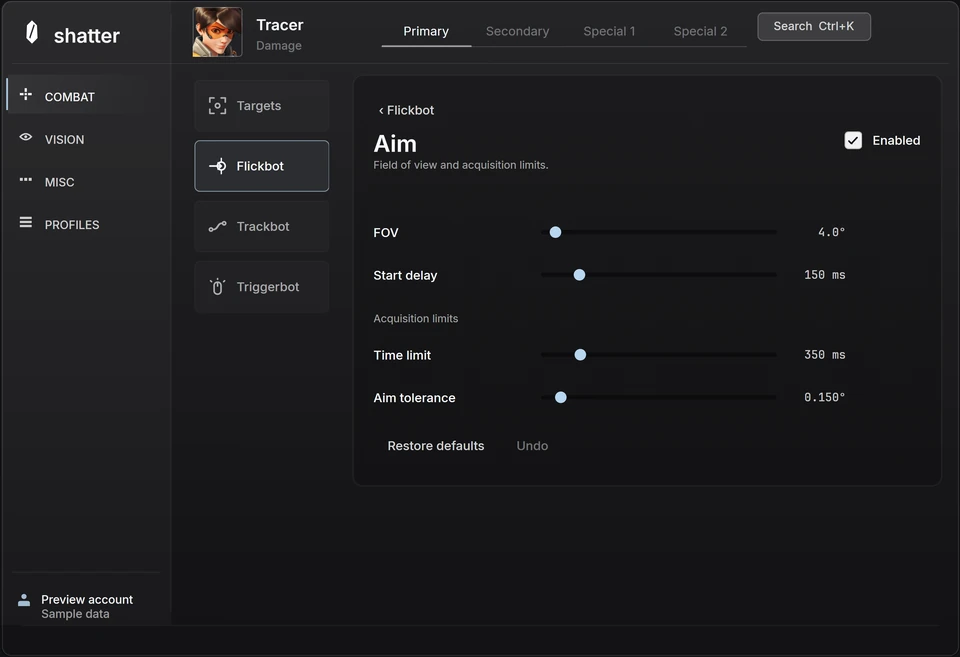
Overwatch aimbot FOV: understand the targeting area
What aim FOV changes, how it differs from camera FOV, and how distance, target priority and hitbox selection fit together.
 Concept illustration
Flickbot vs tracking in Overwatch: what changes?
Compare a single aim movement with sustained following, then separate movement style, activation and firing behavior.
 Interface preview
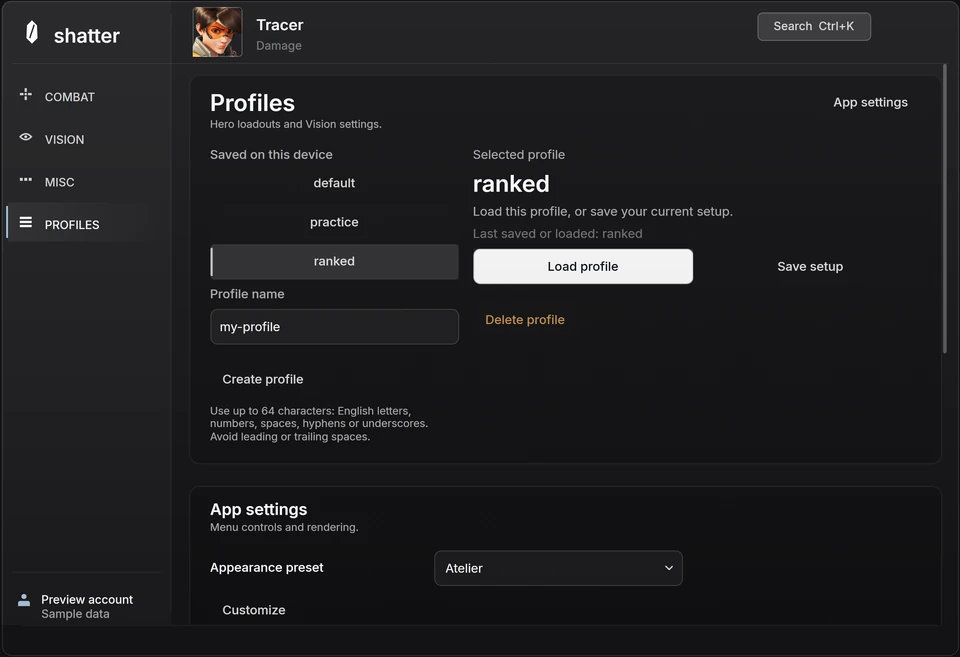
Overwatch hero profiles: save a setup you can return to
Understand hero selection, action-specific controls and named profiles, then make experiments easy to compare and undo.