Activation setup
Overwatch aimbot keybinds: Hold, Toggle and Always explained
Set up Overwatch aim activation without confusing the aim key, menu hotkey and panic key. Compare Hold, Toggle and Always, then troubleshoot unexpected behavior.
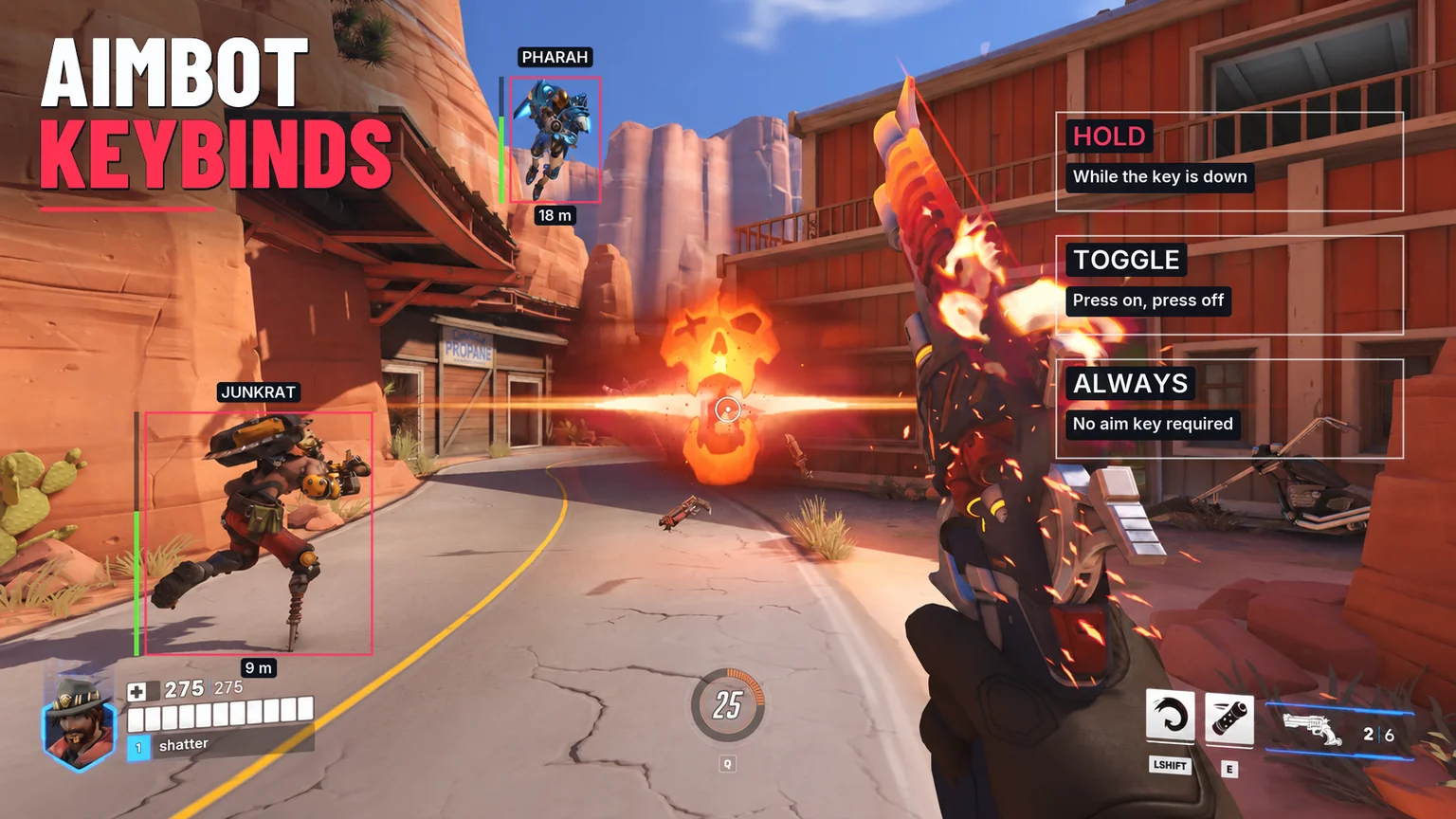
An aimbot keybind determines when an enabled aim feature runs. Hold runs while the key is held; Toggle starts on one press and stops on the next; Always does not wait for a keypress. A feature’s enable switch and its activation mode are separate decisions.
The shatter Overwatch interface gives Flickbot, Trackbot and Triggerbot their own Key & mode controls. These are also separate from the key that opens the menu and the panic key. Understanding those three jobs prevents most keybind confusion.
What Hold, Toggle and Always actually mean
Start with Hold when comparing activation modes: the physical action and intended active period are easy to match. Press and hold the assigned key, then release it. Toggle changes that relationship: releasing the key does not stop the toggled state; another fresh press does. Always removes the keypress requirement while the enabled feature and its other conditions permit it to run.
An activation mode is not a promise that a target is available or that every selected action supports the feature. If nothing happens, check the feature’s enabled state, current hero/action and target conditions as well as the key. Rebinding the same control repeatedly cannot resolve an unrelated eligibility problem.
Scroll to compare
| Mode | Starts from | What releasing the key does |
|---|---|---|
| Hold | Holding the assigned key | Ends that held activation |
| Toggle | A fresh press; another press cancels | Does not cancel the toggled state |
| Always | No keypress required | Does not stop continuous activation |
Aim key, menu hotkey and panic key are different
The aim key belongs to the selected feature. Menu Hotkey shows or hides the interface. Panic Key pauses features and hides overlays until it is pressed again. Hiding the menu is therefore not the same action as pausing the product.
The sample menu starts with Mouse4 for Flickbot, G for Trackbot and LMB for Triggerbot. Menu Hotkey is Insert and Panic Key is End. Treat these as visible sample defaults, not a requirement that those bindings fit your own keyboard, mouse or game controls.
Check for shared bindings before saving a setup. If the same physical button also triggers a game action, that game action and the feature activation can happen together. Choose deliberately; a comfortable button is more useful than copying a popular binding without understanding the conflict.
A clean way to configure one aim binding
Choose the hero and action first. Open the relevant feature tab and its Activation section, then inspect the enable switch. Select Hold, click Key & mode and press the intended keyboard key. Check the displayed key label and mode together. Repeat for another feature only when you want that feature to have its own activation behavior.
In the website preview, this is an interface demonstration: assigning a key changes the sample settings. The browser is not controlling an installed product or an Overwatch match. Use it to learn where the controls are and how settings are grouped.
If you are organizing several setups, the hero settings and saved profiles guide explains the distinction between editing the current hero/action and loading a named configuration.
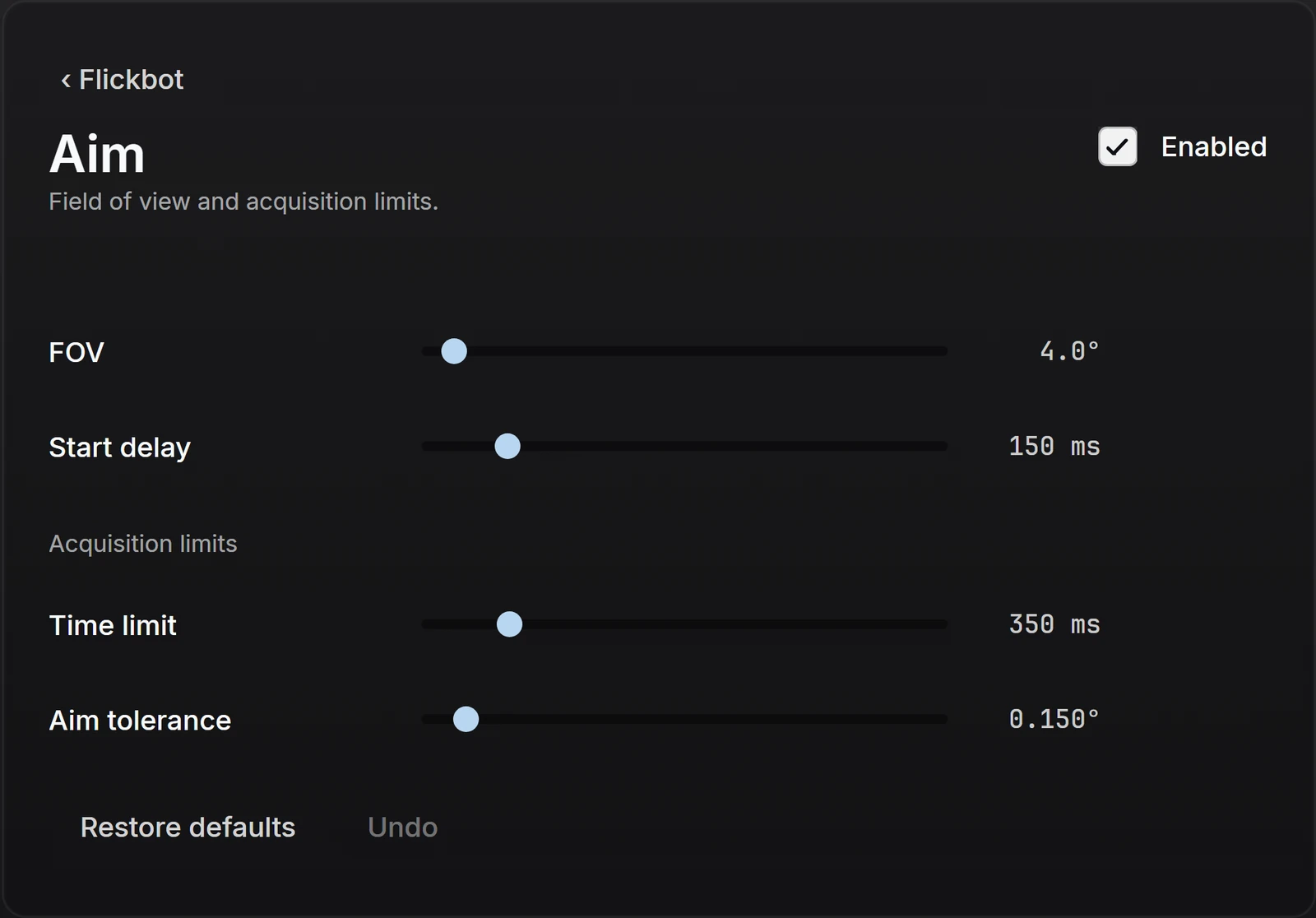
Why aim keeps running, stops early or never starts
Begin with the behavior you expected. If you expected release-to-stop but selected Toggle or Always, the mode is the first thing to correct. If you expected a keypress to do anything while the feature is disabled, check the enable switch before changing the key.
Check whether Panic Key paused the product, whether you are editing the intended hero/action, and whether the named profile was actually loaded. These are separate checks: a displayed binding can be correct while the rest of the configuration is not the one you intended.
Scroll to compare
| Symptom | First check | Expected distinction |
|---|---|---|
| It continues after I release the key | Toggle or Always selected? | Only Hold ties activity to continued key-down |
| It stops when I release the key | Hold selected? | Toggle needs a second press rather than release |
| The menu closes but features are not paused | Menu Hotkey used? | Menu visibility and Panic Key have different jobs |
| My saved binding seems missing | Correct hero, action and loaded profile? | Selecting a profile name is not loading it |
Save the behavior you intended
Record the feature, hero/action, key and mode together. A note such as Trackbot / Primary / G / Hold is more useful than simply writing G. Keep one known baseline so the next change has something clear to compare against.
For settings that appear to revert or apply somewhere else, use the Overwatch config troubleshooting guide. You can compare the complete controls and shatter’s Overwatch access options on the product page.
Common questions
What is the difference between Hold and Toggle aimbot activation?
Hold follows the time the assigned key remains pressed. Toggle starts on a fresh press and is cancelled by another fresh press; releasing the key does not cancel the toggled state.
Does Always mode need an aim key?
Always does not wait for a keypress. The feature still has to be enabled and its other operating conditions must be satisfied.
Does closing the shatter menu pause aiming?
Menu Hotkey controls interface visibility. Panic Key is the separate control that pauses features and hides overlays until it is pressed again.
Will changing a key in the website change my installed config?
No. The website uses sample settings in its own browser session. It does not edit your installed product or game session.
Sources & further reading
Continue reading
Follow the next part of your setup.
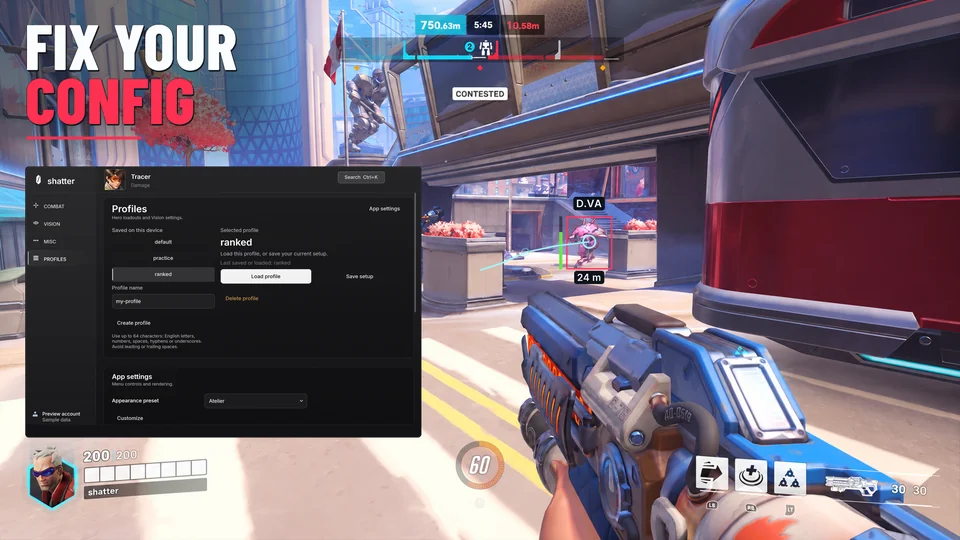
Overwatch cheat config not applying? A shatter settings checklist
Check selected versus loaded profiles, hero and action settings, activation modes and ESP controls. Follow a short diagnostic order before overwriting your config.
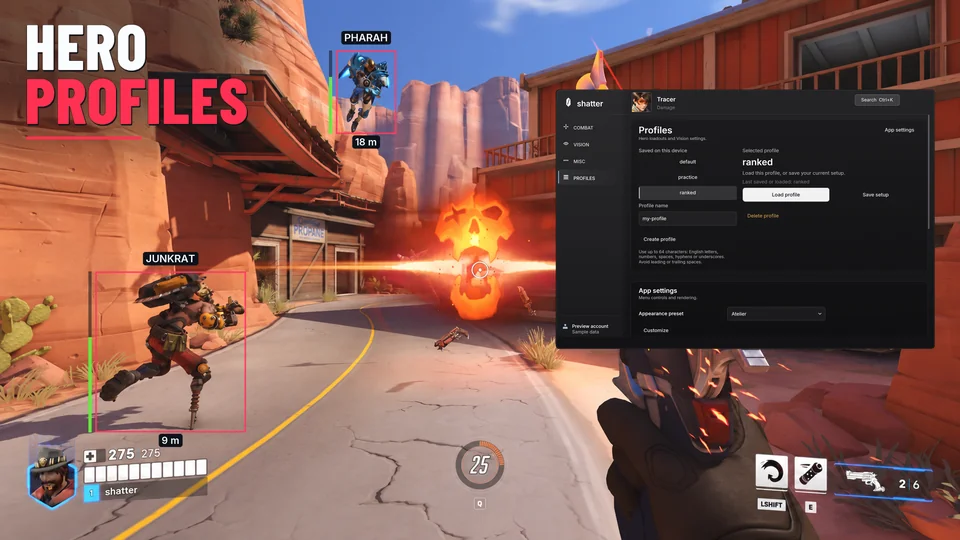
Overwatch cheat configs: hero profiles and saved settings
Learn how Overwatch cheat configs, hero settings and named profiles fit together. Save a baseline, compare changes and avoid editing the wrong attack.
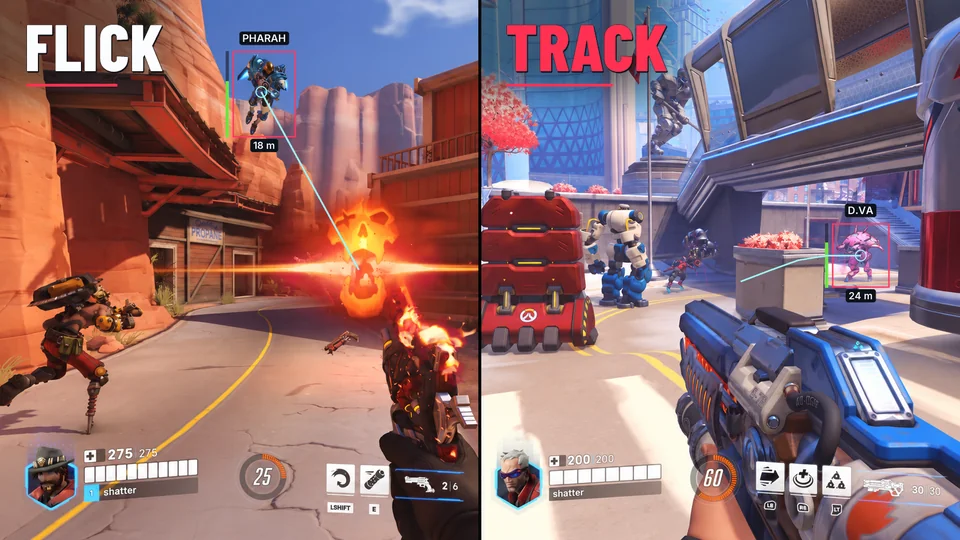
Flickbot vs tracking aimbot in Overwatch
Compare flickbot, tracking aimbot and triggerbot in plain English, with Overwatch weapon examples and the settings that separate aiming from firing.