Config troubleshooting
Overwatch cheat config not applying? A shatter settings checklist
Check selected versus loaded profiles, hero and action settings, activation modes and ESP controls. Follow a short diagnostic order before overwriting your config.
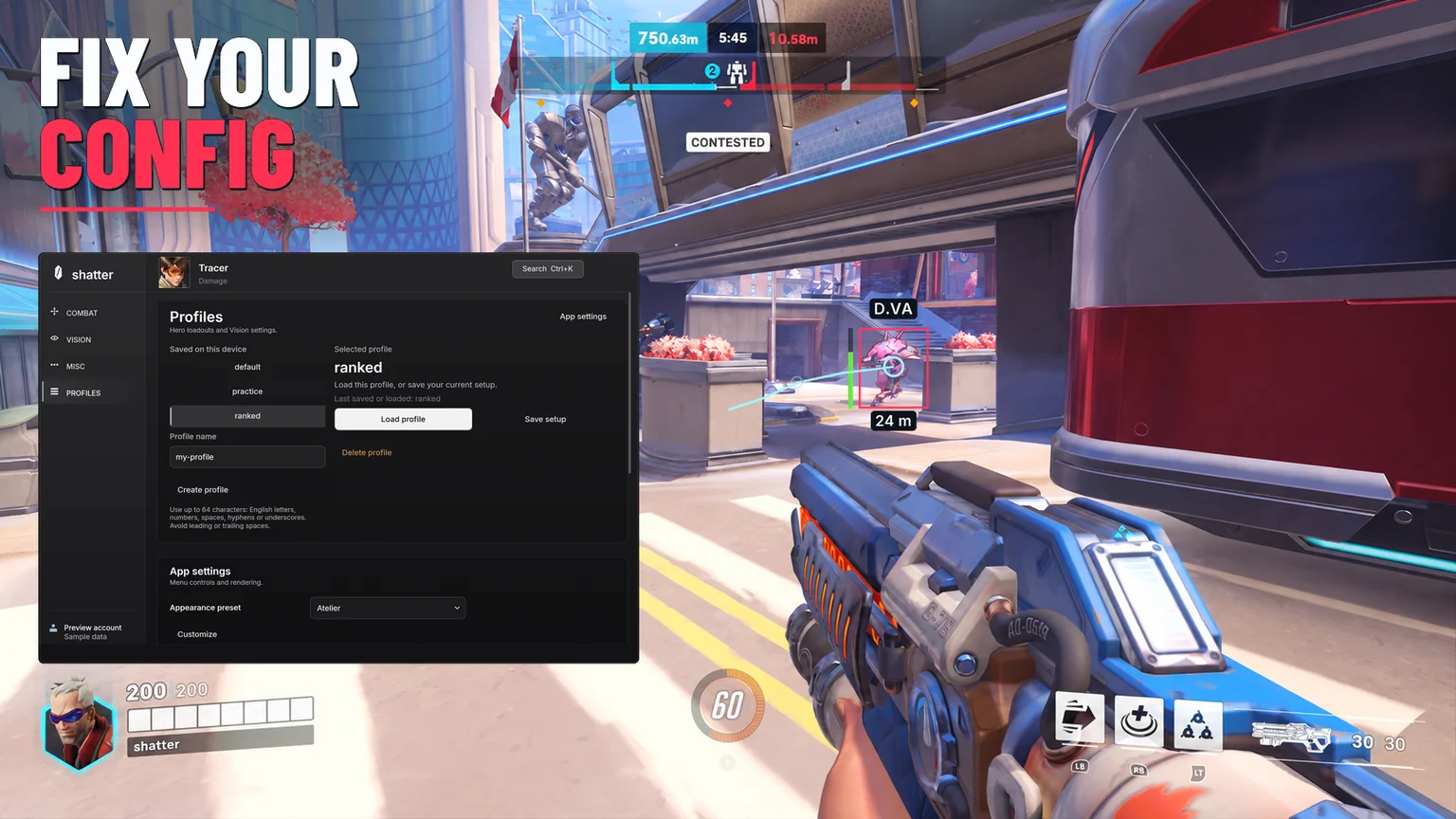
When an Overwatch cheat config seems not to apply, first check which settings you are looking at. A selected profile is not necessarily loaded. Another hero or action can have different values. An enabled feature can also be waiting for its activation key. Check those distinctions before resetting or saving over a working setup.
This checklist follows the controls in shatter’s Overwatch menu. It covers settings and profile behavior. A loader download, account-access or product-availability problem belongs to a different part of the journey.
Start with the symptom you can actually see
Keep the current profile intact while you diagnose the problem. Note the selected hero, action and feature, plus the value you expected. Then follow the relevant row below. This avoids changing five unrelated controls and losing the original clue.
Scroll to compare
| What you see | Check first | What to do next |
|---|---|---|
| Choosing a profile name changes no settings | Was Load profile pressed? | Load the selected profile, then inspect a known value |
| The value changes when I select another hero/action | Which hero/action owns the edit? | Return to the original selection and compare |
| Aim is enabled but appears inactive | Key & mode, panic state and target conditions | Separate activation from target eligibility |
| An ESP edit does not change who aim selects | Visual control or aim control? | Check Combat targeting separately |
| The website forgot my sample setup after a refresh | Was the whole page reloaded? | A new preview session starts with its sample state |
A profile name is a selection, not a load action
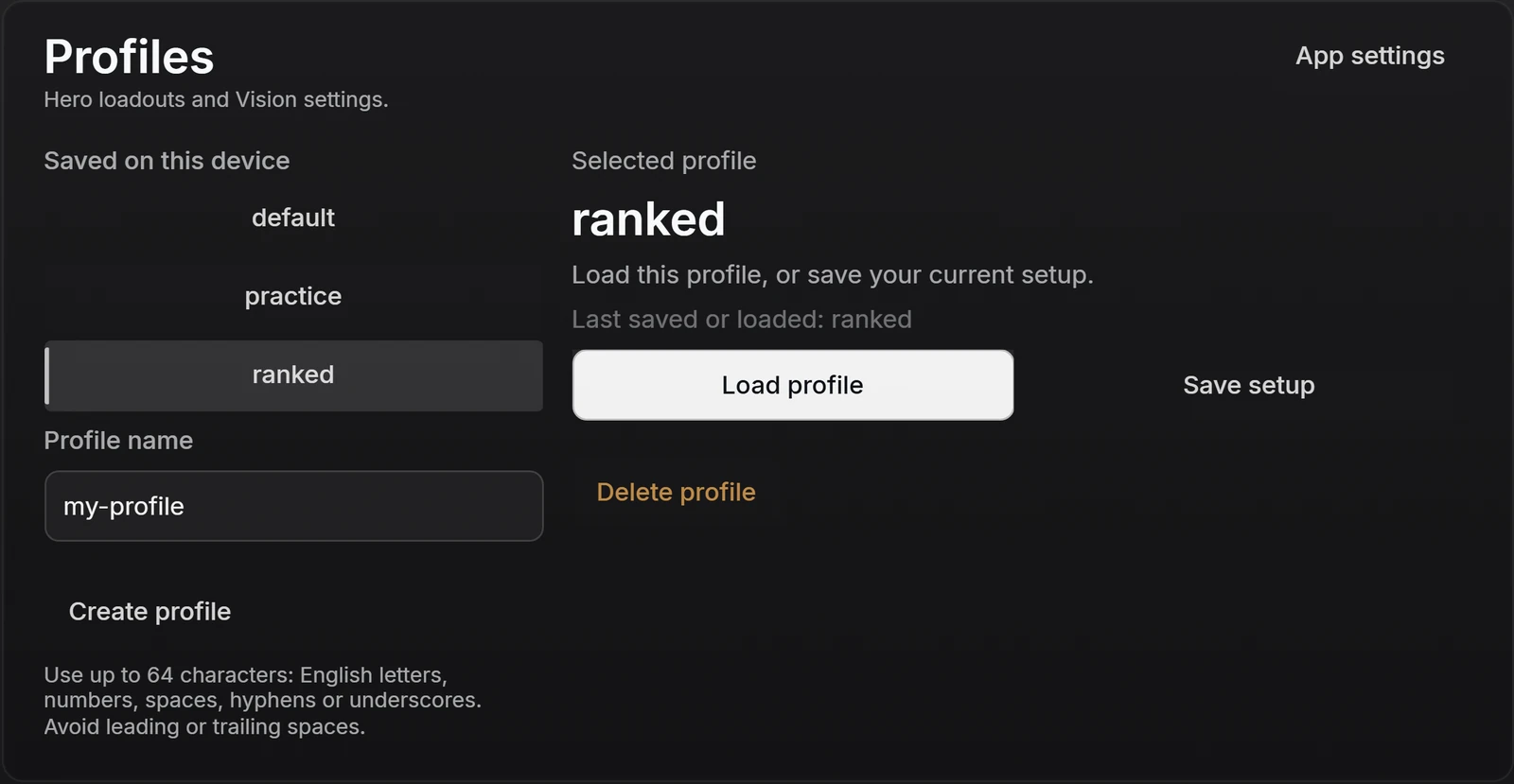
On Profiles, choosing a name identifies the setup you want to work with. Load profile is the explicit action that restores it. Save setup records the current configuration for the selected setup. Clicking a name and then continuing to edit does not mean those settings were loaded first.
Use one recognizable value to check the sequence. In the browser preview, save a baseline with Trackbot → Motion → Response at 100ms. Change it to 180ms without saving over that baseline. Select the baseline name: the current value should remain 180ms. Choose Load profile, then return to Motion: it should return to the saved 100ms. These numbers are a demonstration of save/load behavior, not a recommended aim preset.
The profiles walkthrough expands that comparison into two named setups. Use a separate variation when you want to keep both rather than overwriting the only copy you recognize.
Check the hero and action before comparing values
A profile can contain settings for more than the single control currently on screen. The hero selector identifies whose settings you are editing; the action selector identifies the selected weapon or ability context. Returning to another hero or action can legitimately show different values.
Compare the full path: hero → action → feature → control. For example, a Primary action’s Target priority can differ from Secondary. Changing Primary to Closest distance should not be treated as a request to give every action that priority. Also note that Flickbot and Trackbot expose the same aim-FOV setting for the selected hero/action; seeing that value in both places is expected.
Global interface preferences are another category. Menu Hotkey and Panic Key serve the whole interface/product rather than one hero’s aim tuning. Do not assume every control beside a hero selector has the same scope.
Separate a loaded setting from an active feature
A successfully loaded config can still be waiting for a Hold key, be in a toggled-off state, or have a disabled feature. Conversely, Toggle or Always can explain why releasing the button did not stop activity. Check the mode label rather than interpreting every unexpected result as a failed profile load.
Use the aim keybind and activation guide for those differences. If activation is correct but a particular player is excluded, inspect FOV and distance eligibility before changing motion or saving another profile.
ESP settings and the browser preview have their own limits
An ESP box, skeleton or health label changes how player information is presented. It does not itself change aim priority. In Vision, compare a simple layout first: Boxes and Health bar on, then toggle Skeleton or labels one at a time. The player preview makes those visibility choices easy to compare.
The website preview stores sample edits in memory for the current preview session. Moving between its views can preserve those edits; a full page reload starts a fresh sample session. Save setup in that preview is not a cloud save and does not create a configuration in your installed product.
The companion figure is also a sample presentation. A setting label changing in the browser is not a measurement of an Overwatch match. Use the preview to understand the controls and their relationships, then use the installed product’s current supported workflow for actual settings.
Send a useful report if the mismatch remains
Record the profile name, hero, action, feature, expected value, observed value and exact sequence that reproduced the mismatch. Include whether it occurred in the website preview or installed product. A cropped screenshot of the relevant controls is more useful than a full desktop image with unrelated account details.
For an account, download or activation issue, use shatter help and the purchase-to-activation guide. For the available features and current terms, return to the Overwatch product page.
Common questions
Why does selecting a shatter profile not change my settings?
Selecting its name identifies the profile. Use Load profile to restore its saved configuration. Save setup is a different action that records the current values.
Why do my settings look different on another hero?
Hero and action selection determine which settings you are editing. Compare the same hero, action, feature and control before deciding that a value failed to load.
Why did my website preview config reset after refreshing?
The interactive preview keeps sample edits in memory. A full reload creates a fresh preview session; the preview is not cloud storage for installed-product configs.
Will resetting a config fix an unavailable download?
No. Download readiness, account access and product availability are separate from menu configuration. Check the account message and the help route for those issues.
Sources & further reading
Continue reading
Follow the next part of your setup.
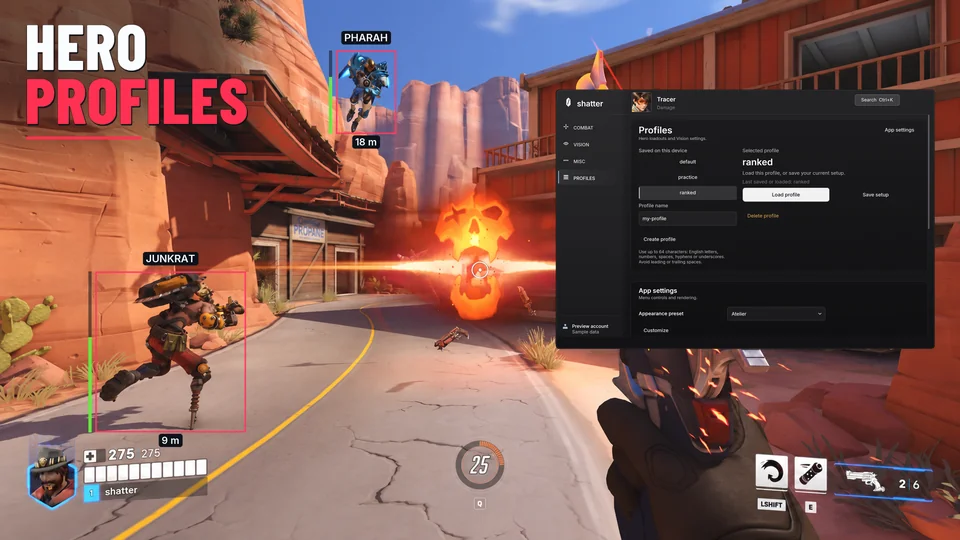
Overwatch cheat configs: hero profiles and saved settings
Learn how Overwatch cheat configs, hero settings and named profiles fit together. Save a baseline, compare changes and avoid editing the wrong attack.
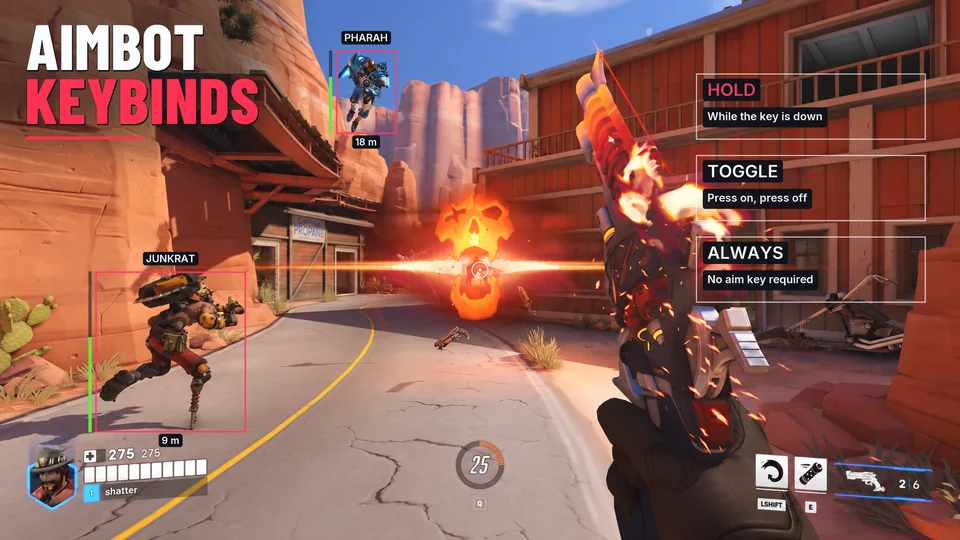
Overwatch aimbot keybinds: Hold, Toggle and Always explained
Set up Overwatch aim activation without confusing the aim key, menu hotkey and panic key. Compare Hold, Toggle and Always, then troubleshoot unexpected behavior.
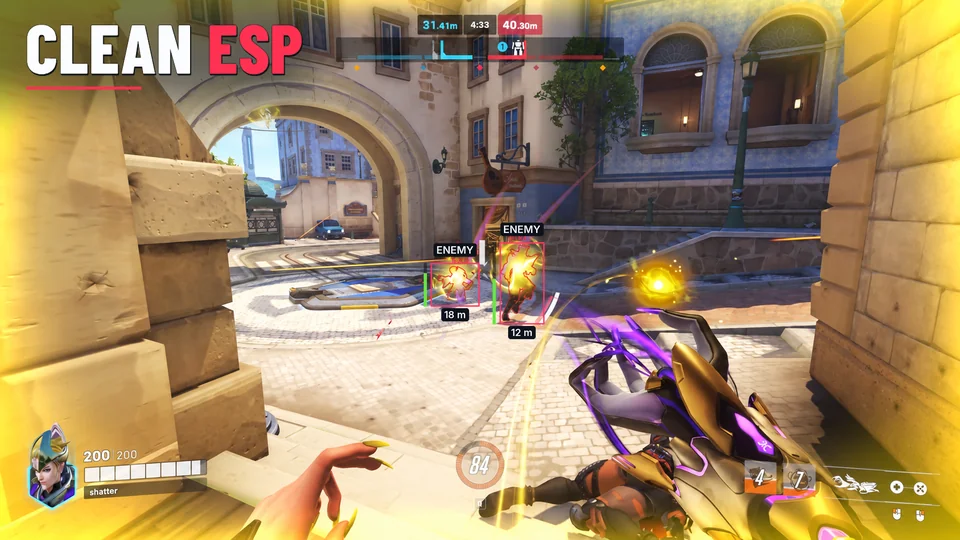
Overwatch ESP settings: boxes, health and visibility
Build a clearer Overwatch ESP layout with boxes, skeletons, health bars and distance labels. Compare colors, line weight, fill, text size and range.